Every website redesign I have seen go wrong failed at the planning stage. Not the design. Not the development. The planning. Someone decided to "just make it look better" without auditing what they had, what was working, and what would break.
I have managed redesigns for businesses with 10 pages and businesses with 10,000. The checklist is the same. The stakes just get bigger.
These are the 23 things you need to check before you touch a single pixel.
Phase 1: Pre-Redesign Audit (items 1-7)
This is where most people skip ahead. Do not be most people.
1. Run a full SEO audit of your current site
Before you change anything, document what you have. Which pages rank? Which ones drive traffic? What keywords are you visible for? What is your domain authority?
This is your baseline. Without it, you cannot measure whether the redesign helped or hurt.
The fastest way to get this baseline is a comprehensive SEO report. You need hard numbers, not guesses.
2. Export your Google Analytics data
Export at least 12 months of traffic data. Page-level performance, conversion paths, top landing pages, bounce rates by page. You will need this to compare before and after.
If you do not have analytics installed, that is useful information too. It means you have no baseline, which means you are redesigning blind.
3. Crawl your entire site
Use Screaming Frog, Ahrefs, or a similar crawler to get a complete URL inventory. Every page, every image, every PDF. You need to know exactly what exists before you decide what stays and what goes.
I have seen redesigns where entire sections of a site vanished because nobody made a complete inventory. The products page? Gone. The case studies that drove 30% of traffic? Deleted.
4. Build a redirect map
This is the single most important item on this list. If you change any URL during the redesign, you need a 301 redirect from the old URL to the new one. Every. Single. One.
Create a spreadsheet with two columns: old URL and new URL. Map every page. If a page is being removed, redirect it to the most relevant remaining page.
A broken redirect map can erase months of SEO progress overnight. I have seen it happen to businesses that spent 50,000 DKK on a redesign and then lost 60% of their organic traffic because nobody mapped the redirects.
5. Audit your content
Not every page deserves to survive the redesign. Go through your content and sort it into three buckets:
- Keep as-is: High-performing pages that drive traffic or conversions
- Rewrite: Pages with good topics but outdated or underperforming content
- Kill: Pages with zero traffic, duplicate content, or irrelevant topics
Consolidate thin pages. Merge overlapping content. A smaller, stronger site beats a bloated one every time.
6. Document your current technical setup
Write down everything technical about your current site:
- Hosting provider and plan
- CMS and version
- SSL certificate provider and expiry
- DNS configuration
- Third-party integrations (payment, email, CRM, analytics)
- Forms and where submissions go
- Any custom server-side logic
You will be surprised how much tribal knowledge lives in your current setup. Document it before it disappears.
7. Set measurable goals for the redesign
"Make it look modern" is not a goal. These are goals:
- Increase organic traffic by 30% within 6 months
- Reduce bounce rate on landing pages by 15%
- Improve mobile conversion rate from 1.2% to 2.5%
- Cut average page load time from 4 seconds to under 1.5 seconds
- Increase leads from contact form by 25%
Write them down. Share them with your developer. If your developer does not ask about goals, read how to choose a web developer before going further.
Phase 2: Content and SEO (items 8-13)
The design is the wrapper. The content is the product. Get this right first.
8. Write your content before designing
Design should serve content, not the other way around. If you design first and then try to fill in content, you end up with Lorem Ipsum placeholders that become permanent because nobody wrote the real copy.
Write your homepage headline, your service descriptions, your about page, and your calls to action before the designer opens Figma.
9. Optimize metadata for every page
Every page needs a unique title tag (under 60 characters) and meta description (under 130 characters). These are your search result listings. They are the reason someone clicks or scrolls past.
Do not copy-paste the same description across pages. Google notices. Users notice.
10. Plan your heading hierarchy
Every page needs one H1 that includes your target keyword. Subheadings (H2, H3) should follow a logical hierarchy. Do not use headings for styling. Use them for structure.
This matters for SEO and for accessibility. Screen readers navigate by headings. If your heading structure is random, your site is unusable for visually impaired visitors.
11. Prepare your image assets
For every image on the new site, you need:
- Properly sized originals (not a 5MB DSLR photo scaled down in CSS)
- Descriptive file names (team-meeting-copenhagen.jpg, not IMG_4392.jpg)
- Alt text for every image
- WebP or AVIF versions for modern browsers
Image optimization is the single biggest page speed win for most redesigns.
12. Create your XML sitemap plan
Know which pages will be in your sitemap before launch. Exclude admin pages, thank-you pages, and any page with a noindex tag. Your sitemap is your communication channel with Google. Keep it clean.
13. Plan your internal linking structure
Map out how pages link to each other. Your most important pages should be reachable within 2-3 clicks from the homepage. Blog posts should link to related posts and service pages. Service pages should link to relevant case studies.
Internal linking is free SEO. Most sites waste it by linking randomly or not at all.
Phase 3: Design and UX (items 14-17)
Now you can open Figma.
14. Design mobile-first
Over 60% of web traffic is mobile. If your designer starts with desktop and "makes it responsive later," the mobile experience will always be an afterthought.
Start with the smallest screen. Make every element work at 375px width. Then expand.
15. Establish a consistent design system
Before designing individual pages, define your building blocks:
- Typography scale (2-3 font sizes, one font family max two)
- Color palette (primary, secondary, accent, neutrals)
- Button styles (primary, secondary, ghost)
- Spacing system (4px or 8px grid)
- Component library (cards, forms, navigation patterns)
Consistency is the difference between a professional site and one that looks like five different designers worked on it.
16. Design your conversion paths
Every page should have a clear next step for the visitor. Map out:
- Where do visitors enter? (homepage, blog posts, service pages)
- What action do you want them to take? (contact, purchase, download)
- What is the path from entry to action?
If a page has no clear purpose, it probably should not exist.
17. Test your navigation with real users
Before building, show your proposed navigation structure to 5 people who are not on your team. Ask them to find specific information. If they struggle, your information architecture needs work.
This takes 30 minutes and saves weeks of post-launch fixes.
Phase 4: Technical (items 18-21)
18. Choose your technology stack deliberately
Do not pick a platform because your developer likes it. Pick it because it solves your specific problems. WordPress, Next.js, Shopify -- each has strengths. Match the tool to the job. We wrote a detailed comparison of Next.js vs WordPress if you are weighing those two.
19. Set up staging and version control
Never build directly on your live site. Set up a staging environment where you can preview changes without affecting your current site. Use Git for version control so you can roll back if something breaks.
20. Configure performance monitoring
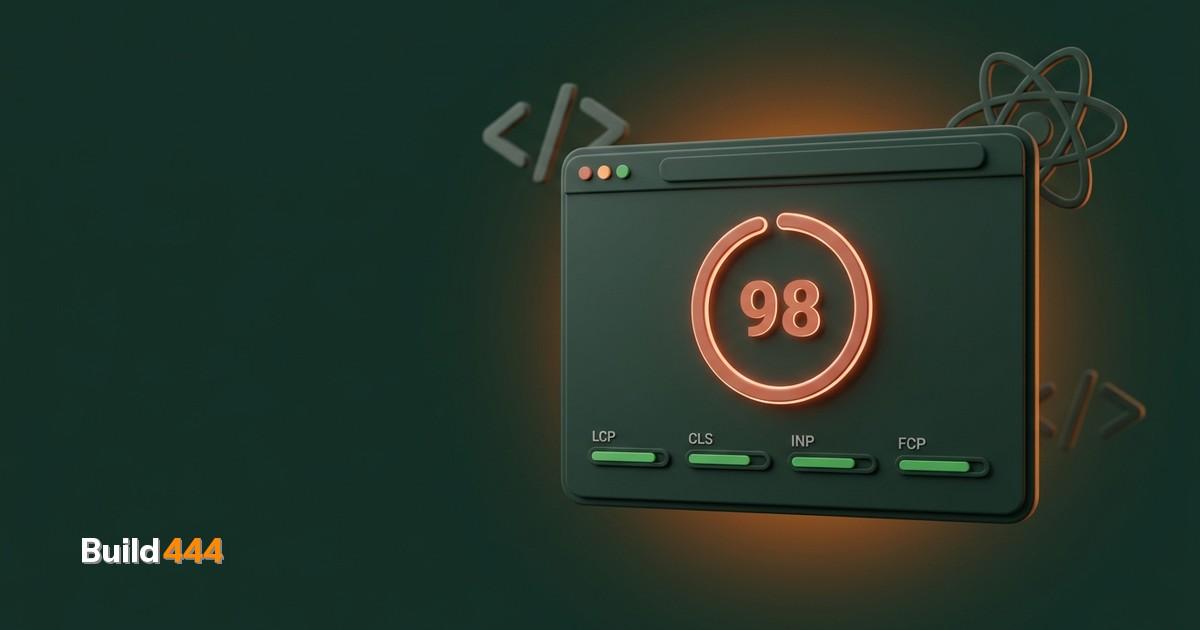
Set up Core Web Vitals monitoring before launch so you have a baseline:
- Largest Contentful Paint (LCP) should be under 2.5 seconds
- Cumulative Layout Shift (CLS) should be under 0.1
- Interaction to Next Paint (INP) should be under 200ms
Tools: Google PageSpeed Insights, Lighthouse, Web Vitals Chrome extension.
21. Implement structured data
Add JSON-LD structured data for your business type. At minimum: Organization, WebSite with SearchAction, and BreadcrumbList. If you have reviews, add Review schema. If you have products, add Product schema.
Structured data does not directly improve rankings, but it earns rich snippets that increase click-through rates.
Phase 5: Launch and Post-Launch (items 22-23)
22. Create a launch-day checklist
On the day you flip the switch:
- [ ] DNS propagation complete
- [ ] SSL certificate active and auto-renewing
- [ ] All 301 redirects verified and working
- [ ] XML sitemap submitted to Google Search Console
- [ ] Google Analytics and other tracking confirmed
- [ ] All forms tested with real submissions
- [ ] Mobile tested on actual devices (not just browser DevTools)
- [ ] Open Graph tags verified with Facebook Sharing Debugger
- [ ] Robots.txt allowing crawling (not leftover noindex from staging)
- [ ] CDN configured and caching correctly
23. Monitor for 30 days post-launch
The redesign is not done when the site goes live. It is done when you have confirmed it is performing at least as well as the old site.
Check daily for the first week:
- Search Console for crawl errors and indexing issues
- Analytics for traffic drops or bounce rate spikes
- Core Web Vitals for performance regressions
- Form submissions to confirm they are arriving
Check weekly for the next three weeks. Compare against your pre-redesign baseline. If organic traffic drops more than 10%, investigate immediately -- it is usually a redirect or indexing issue.
The redesign that works
The best redesigns I have seen follow a pattern: 40% of the time is spent on research and planning, 30% on content, and 30% on design and development. The worst redesigns invert that ratio.
Your website is a business tool. Redesigning it is not a creative exercise. It is a strategic decision that should be driven by data, not aesthetics.
If you are not sure where to start, get a baseline SEO report first. Know what you have before you decide what to change.
And if you want someone to run the whole process, our web development team has done this dozens of times. We follow this exact checklist.